Owner, Editor and Viewer: who can do what
The Owner runs the household, Editors change the schedule, and Viewers see it and take a game nobody drives.
On this page
Your household is everyone who shares your schedule. Each person who signs in has one of three roles.
- The Owner is the one person in charge: whoever made the household, until they give it to someone else.
- An Editor is someone who can change the schedule, like the other parent, but not the household itself or its settings.
- A Viewer is someone who sees the schedule and changes only their own things. They can take a game nobody is driving.
The Owner picks Editor or Viewer when inviting someone. If you can't do something, the app hides its button or says who can.
Each person sets where they drive from, their name and colour, and nobody else can.
Seeing the season
| Owner | Editor | Viewer | |
|---|---|---|---|
| See every day, every game and drive, and every conflict | Yes | Yes | Yes |
| Open directions to a game | Yes | Yes | Yes |
Today's drives
| Owner | Editor | Viewer | |
|---|---|---|---|
| See today's traffic on each drive as it comes up | Yes | Yes | Yes |
| Refresh the traffic on a drive they drive | Yes | Yes | Yes |
| Refresh the traffic on anyone's drive | Yes | Yes | No |
| See the drive from where they are, on the Captain plan | Yes | Yes | Yes |
Who drives, and skipping
| Owner | Editor | Viewer | |
|---|---|---|---|
| Take a game nobody drives, or give back one they drive | Yes | Yes | Yes |
| Choose who drives, or give a game to someone else to drive | Yes | Yes | No |
| Skip a game, or put it back | Yes | Yes | No |
Teams
| Owner | Editor | Viewer | |
|---|---|---|---|
| Change their own name and colour | Yes | Yes | Yes |
| Add or remove add-ons, people who don't sign in, and change their names and colours | Yes | Yes | No |
| Add, change, merge or remove teams, leagues and levels, and choose who plays on each | Yes | Yes | No |
| Add, change or remove games, practices, one-day events and tournaments | Yes | Yes | No |
| Rank the teams and leagues that come first, which decides the game we suggest skipping | Yes | No | No |
Import
| Owner | Editor | Viewer | |
|---|---|---|---|
| Read a schedule from a picture or a PDF, and save it | Yes | Yes | No |
| Keep a team's calendar link, read it again, or remove it | Yes | Yes | No |
Venues
| Owner | Editor | Viewer | |
|---|---|---|---|
| Change, merge or remove a venue | Yes | Yes | No |
Settings
| Owner | Editor | Viewer | |
|---|---|---|---|
| Change the household's settings, like how early to arrive and when a day is Tight, and each league's timing | Yes | No | No |
| Change one game's or practice's timing, or a day's to fix a conflict | Yes | Yes | No |
| Turn their own phone's location on or off | Yes | Yes | Yes |
Household
| Owner | Editor | Viewer | |
|---|---|---|---|
| Invite someone, and choose Editor or Viewer | Yes | No | No |
| Make someone an Editor or a Viewer | Yes | No | No |
| Take out someone who signs in, after their first days | Yes | No | No |
| Hand the household to someone else | Yes | No | No |
| Rename the household | Yes | No | No |
| Change the home address and time zone | Yes | No | No |
| See the household's full home address | Yes | No | No |
| Say if someone who picked the household's address lives there | Yes | No | No |
| Set where they drive from | Yes | Yes | Yes |
| Reset the household, emptying its season | Yes | No | No |
| Delete the household | Yes | No | No |
| Leave the household | After handing over | Yes | Yes |
| Join another household from an invitation | After handing over | Yes | Yes |
| Sign out | Yes | Yes | Yes |
| Delete their own account | Yes | Yes | Yes |
| Close the note about a new Owner | Yes | Yes | Yes |
Plan and billing
| Owner | Editor | Viewer | |
|---|---|---|---|
| Choose a plan, pay, manage billing, or use a promo code | Yes | No | No |
People the Owner confirms live there see the full address too.
Depends on your plan Everyone who signs in counts toward your plan, Viewers too.
Change what someone can do
Open the menu (☰), then tap Household.
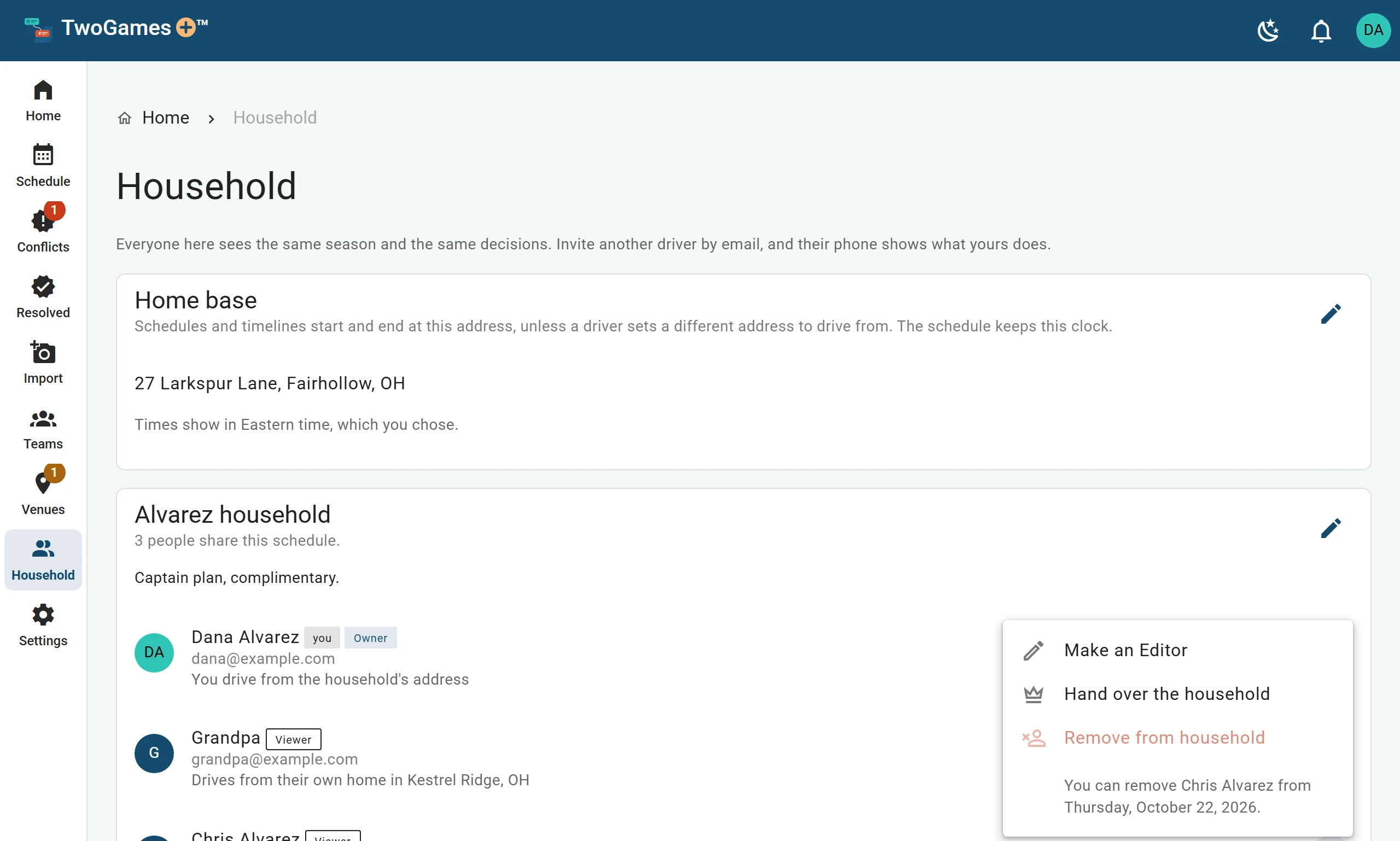
In the household's list, tap the three dots (⋮) next to their name.
Tap Make an Editor or Make a Viewer. We email them about it.
Rename the household
The Owner taps the pencil next to the household's name on Household, types the new name, then taps Save.
Give the household a new Owner
On Household, in the household's list, tap ⋮ next to their name.
Tap Hand over the household.
Read what it says, then tap Hand over.
They're the Owner now, and you're an Editor. Only they can give it back.
You both get an email, and a note in the app. If the plan was paid on our website, billing goes to the new Owner.
A plan bought in our iPhone or Android app stays with the Apple or Google Account that bought it. The new Owner can't change or cancel it, unless they bought it.
Leaving, or taking someone out
To leave, tap Leave in the Danger Zone at the bottom of Household, then Leave again. You start with an empty schedule.
An Owner on their own can't leave. They can join another household once theirs is empty, or after deleting it.
The Owner takes someone out with ⋮ next to their name, then Remove from household, then Remove. In someone's first 7 days it's greyed out, with the day it works. We email whoever is removed.
Someone who leaves in those days still counts toward your plan until they end.
In our privacy notice's words: Anyone but the Owner can leave a household whenever they like. The Owner can remove anyone else, but not in their first 7 days after joining. While others are in it, the Owner can leave, or join another household, only after handing it to one of them, who becomes its Owner. Leaving or being removed takes a person off that household's schedule, and deletes the address they drive from there; neither deletes their account.
Read more in our privacy notice
To come back, they'll need a new invitation.
What to do next
- Invite your partner or another driverShare one schedule, so everyone you invite sees the same season on their own phone.
- Choose, change or cancel your planThe Owner picks a plan on the Household page, and changes or cancels it there too.
- Delete your household, or everythingYou can delete your account in the app at any time, and the Owner can delete the household.
Still stuck?
Write to support@twogamesplus.com and a person will answer.