A schedule didn't read well
What to do when a picture can't be read, is refused, or the rows come out wrong.
On this page
Some rows came out wrong? Fix or untick them before you save. Nothing is saved until you tap Save.
Who can do this: an Editor, someone who can change the schedule, or the Owner, the one person in charge. A Viewer, someone who sees the schedule and changes only their own things, has no Import in their menu.
No schedule was found
What you see
No schedule was found on that page.
Why it happens
The picture may be blurry or cut off, or show something other than the schedule. Don't worry: a read that finds nothing doesn't use up a schedule read. That's one picture or PDF we read for you.
What to do
Tap Start over.
Take a clear screenshot of the schedule table itself.
Tap Choose a screenshot or PDF and pick it.
Tap Read the schedule again.
We can't read that file
What you see
A message about the file, like This file is too big to read or HEIC photos cannot be read yet.
Why it happens
We read screenshots, photos and PDFs up to 10 MB. iPhone photos saved as HEIC can't be read yet. A very long screenshot can be too tall to read at once.
What to do
Take a screenshot of the schedule instead, and choose that.
On an iPhone, you can set the camera to Most compatible in Settings › Camera › Formats.
Depends on your plan If the screenshot is too tall, crop it into two and import each one. Each one uses a schedule read.
You've used your reads
What you see
A line that starts You have used, and Read the schedule can't be tapped.
Why it happens
Depends on your plan How many reads you get depends on your plan. Monthly reads start again at midnight Eastern on the first of each month. Reads you start with don't come back.
What to do
Add games and practices by hand on Teams instead. That never uses a read: see Add one game or event by hand.
Or tap Paste a calendar link and paste your team's link. It doesn't use a read.
Or move to a plan with more reads. The line names it, and Plans and what they include compares them.
If the message asks you to write to us, email support@twogamesplus.com, and we'll sort it out.
A calendar link didn't work
What you see
At the top of the page, a message like That isn't a calendar link. Or We couldn't open that link.
Why it happens
The link may be cut short, or may not be a calendar's. A big calendar is too much to read here, and we don't read calendars from some apps.
What to do
Copy the whole link. It begins with webcal or https.
In your team's app, look for its Subscribe or calendar link. Add a schedule from a calendar link helps.
Paste it into Calendar link, then tap Read the calendar.
Still stuck? Take a screenshot of the schedule instead.
After Read the calendar, the review may say We found no games, practices or other events in that calendar. It may be empty, or hold only events we leave out, like cancelled or all-day ones.
Add your home address first
What you see
Add your home address on the Household page first.
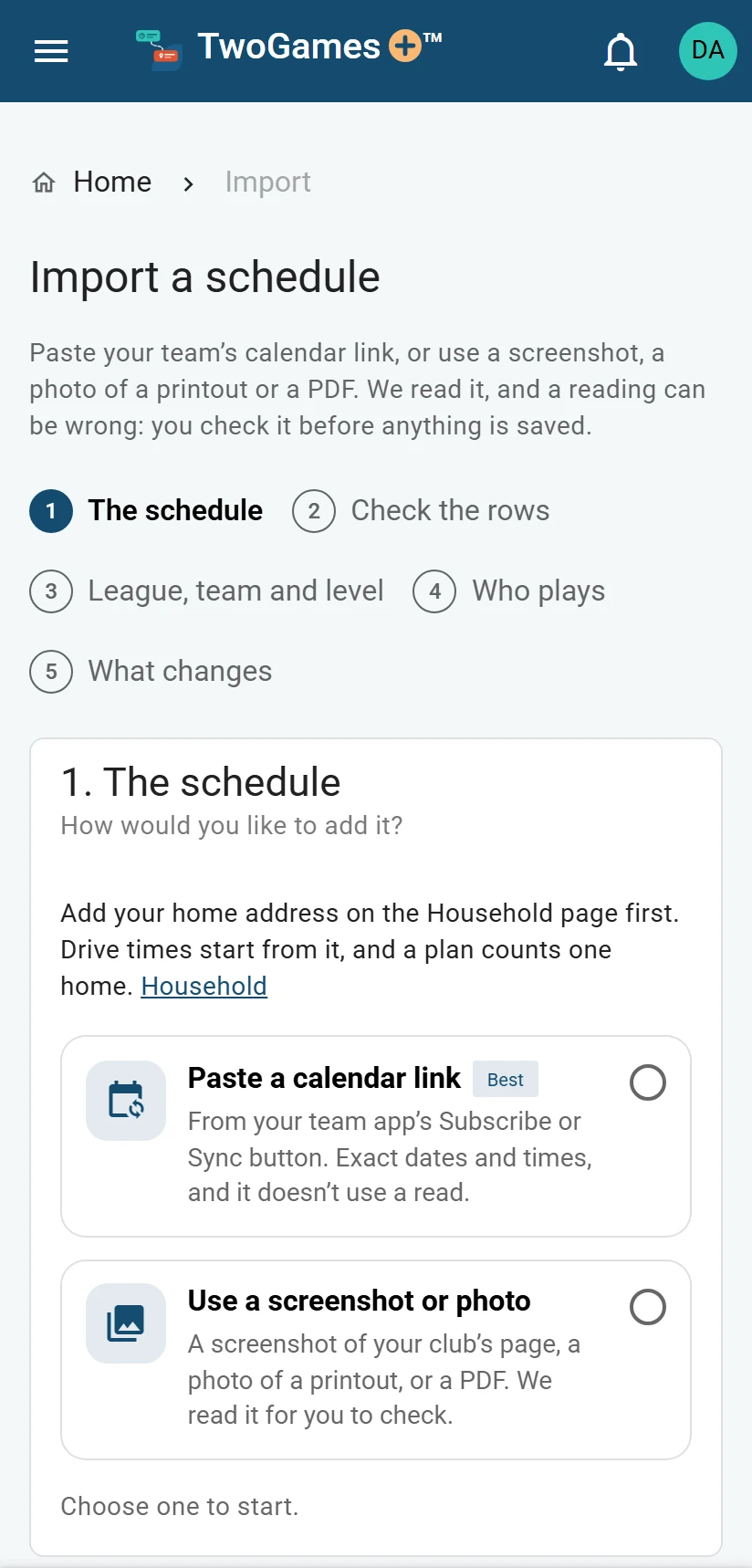
Why it happens
Every drive starts from your home, and a plan counts one home. So we read a schedule only once the map has found your home.
What to do
Add your home address. Add your home address shows how.
Added it already? Check the street address on Household, and save it again.
Come back to Import and try again.
The page may say Lots of schedules are being read right now. Nothing was read, and no read was used. Wait a minute, then try again.
Depends on your plan Can't tap Read the schedule or Read the calendar for another reason? You may have more teams or players (anyone on one of your teams) than your plan allows. See I can't add a player, team or person.
What to do next
- Check what we read, then saveNothing is saved until you check the rows, pick the team and tap Save.
- Add a weekly practice by handAdd a practice that happens at the same time every week, for the whole season.
- Plans and what they includeEvery plan checks every day, and bigger plans let you add more and give a few extras.
Still stuck?
Write to support@twogamesplus.com and a person will answer.