A day says Drive unknown
A venue or a home isn't on the map yet, so we can't check the drives to it.
On this page
Every drive needs both places on the map. Until we find a venue, a rink, field, court or gym, we can't check drives to it or from it.
If nothing else is wrong that day, it says Drive unknown: a place on the day isn't on the map yet. Conflicts lists it under its own heading. It isn't Tight, which means less than 45 minutes to spare, since we don't know how long the drive takes.
We never call it a Conflict on a guess. That word is for when the drive doesn't fit, or two things overlap.
Open the day to see which of these it says. Then follow its steps.
Who can do this: an Editor, someone who can change the schedule, or the Owner, the one person in charge. A Viewer, someone who sees the schedule and changes only their own things, can't change a venue. They ask an Editor or the Owner to fix the address.
The venue has no street address
What you see
The day says Drive unknown, and the venue's line says it needs a street address. On Venues, the venue says the same.
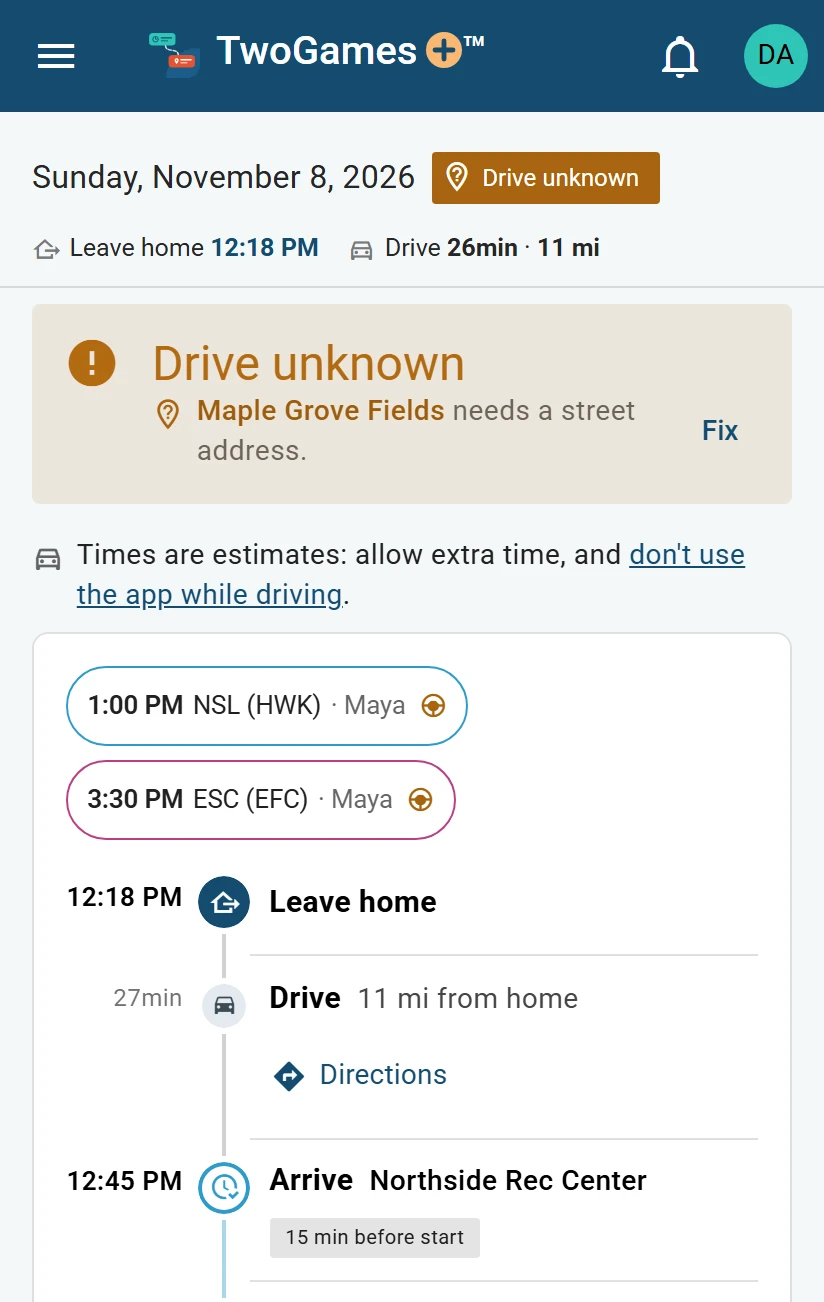
Why it happens
The map needs a street address to find a place. A name and a town are not enough.
What to do
Open the menu (☰), then tap Venues. On a tablet or computer, Venues is on the left.
Find the venue. If the list is long, type its name in Search venues.
Tap the pencil next to its name.
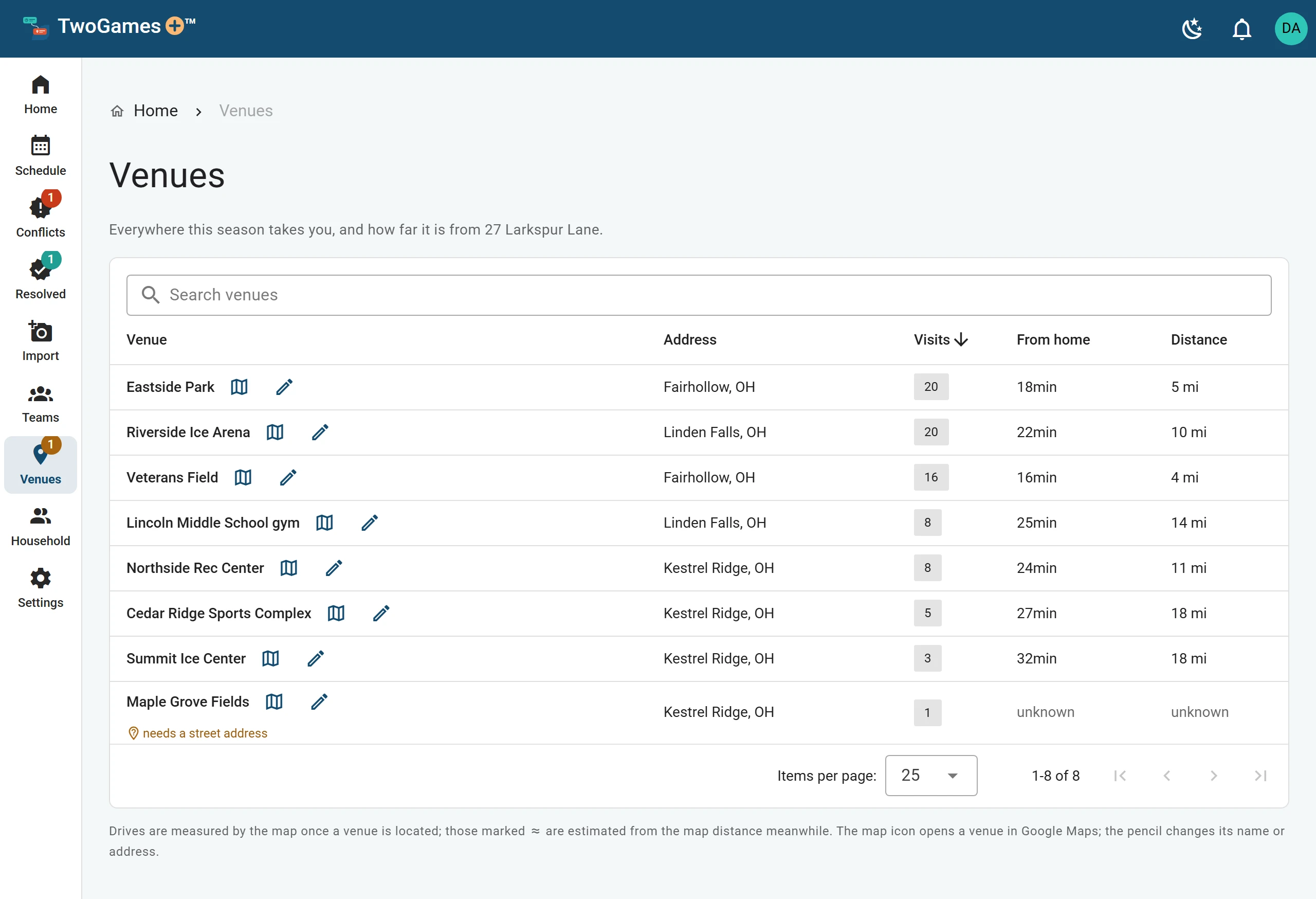
Every venue your schedules use, with its address. Type the Street address. Check the Town, State and ZIP.
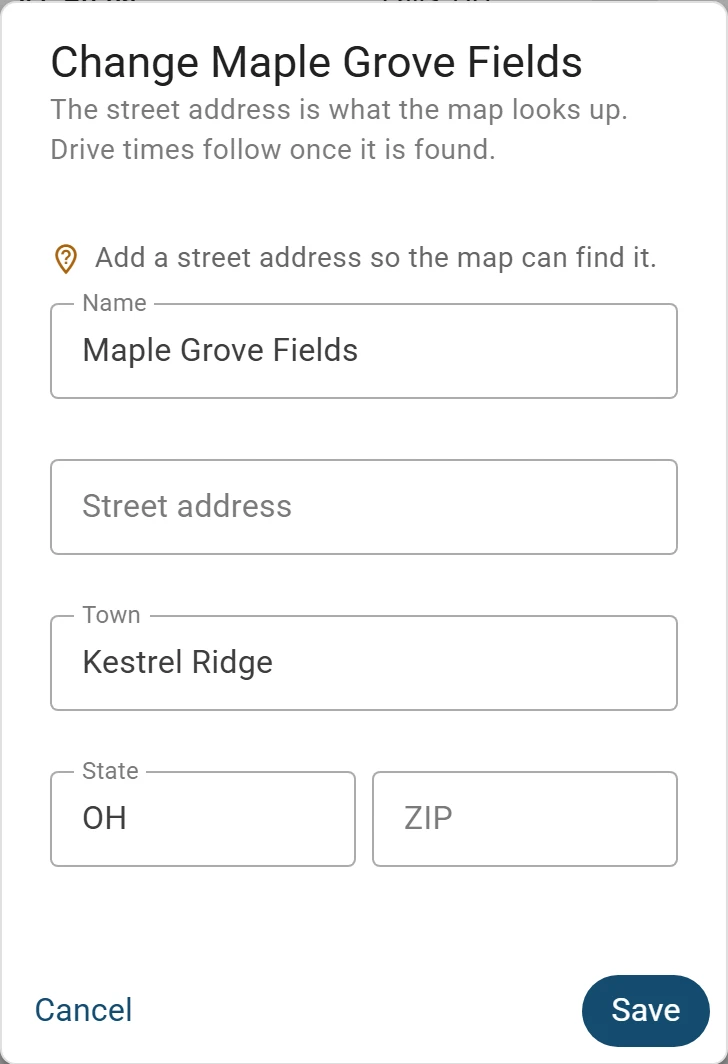
Add the street address, then Save. Tap Save. We look the address up, and drive times follow once the map finds it.
The map couldn't find the address
What you see
On the day's page, the venue's line says address not found. On Venues, the venue says address not found: check it.
Why it happens
The address may have a typo, or the wrong town or ZIP.
What to do
Open the menu (☰), then tap Venues. On a tablet or computer, Venues is on the left.
Tap the pencil next to the venue's name.
Fix the Street address, Town, State or ZIP. If a list of places shows as you type, tap the right one.
Tap Save. We look the address up again.
A home isn't on the map yet
What you see
Where the time to leave goes, the day says … isn't on the map yet, and names a home.
Why it happens
The map hasn't found the address a car leaves from. Until it does, we can't time that car's first drive.
What to do
Your own home? On Household, tap ⋮ by your name, then Where you drive from, and fix the address there.
Your Home base, your shared home address? The Owner fixes it: see Add your home address.
Someone else's own home? Only they can change it, so ask them.
The venue has an address, but no drive times yet
What you see
The day's page says Locating, then the venue's name. On Venues, the venue has a street address and says locating….
Why it happens
The map hasn't found it yet. Sometimes that takes a little while.
What to do
Close the app, and open it again a little later.
Still not found the next day? On Venues, tap the pencil and check the address for a typo.
If you fixed anything, tap Save.
Still stuck? Write to support@twogamesplus.com and a person will help.
What to do next
Still stuck?
Write to support@twogamesplus.com and a person will answer.