Add a schedule from a calendar link
Paste your team's calendar link, check what we read, and keep the link to catch changes.
Read what the video says
Many team apps share their schedule as a calendar link. Paste it on the Import page.
Not sure where yours is? How do I find it shows where to look.
Read the calendar. A calendar link never counts as one of your reads. A club’s calendar can have several teams. Tick yours.
Games come in one by one, and practices as weekly lines. Cancelled games, other teams and days already past are left out.
Make its team once: its league, its level, and who plays. Here, that’s Maya.
Leave this box ticked, and we keep the calendar up to date.
On Starter and Captain, we read it again whenever someone opens the app, and the bell tells you if it changed. You can also tap Read again.
Here, the club moved a game to 3:30. The new time comes in, and the old one goes. Nothing changes on your schedule until you save.
Before you start: add your home address first. Every drive starts from home, so we can't read a schedule without it. Add your home address shows how.
Who can do this: an Editor, someone who can change the schedule, or the Owner, the one person in charge. A Viewer, someone who sees the schedule and changes only their own things, has no Import in their menu. The app tells them who to ask.
Many team apps and club websites share their schedule as a calendar link. We read its games and practices for you. It never uses a schedule read, which is one picture or PDF we read for you.
Find the calendar link in your team's app or website. Find your team's calendar link shows where.
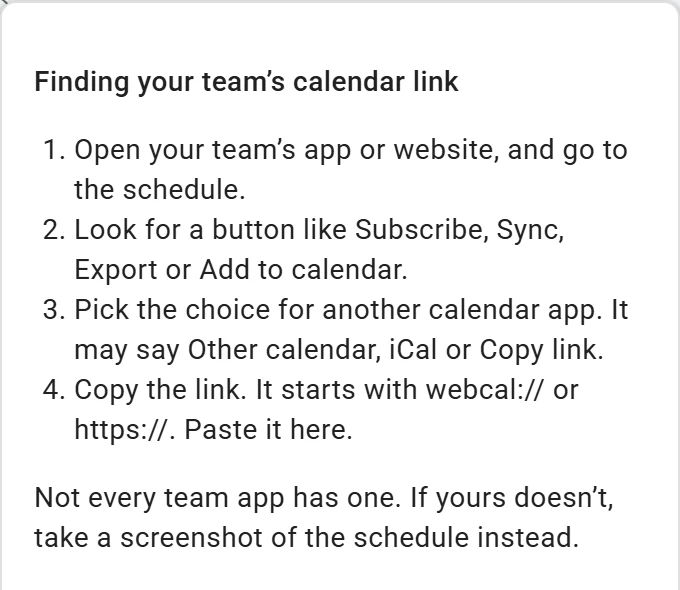
On Import, How do I find it? says where to look. Copy the whole link. It begins with webcal or https.
Open the menu (☰) and tap Import. Tap Paste a calendar link, paste the link in the box, and tap Read the calendar.
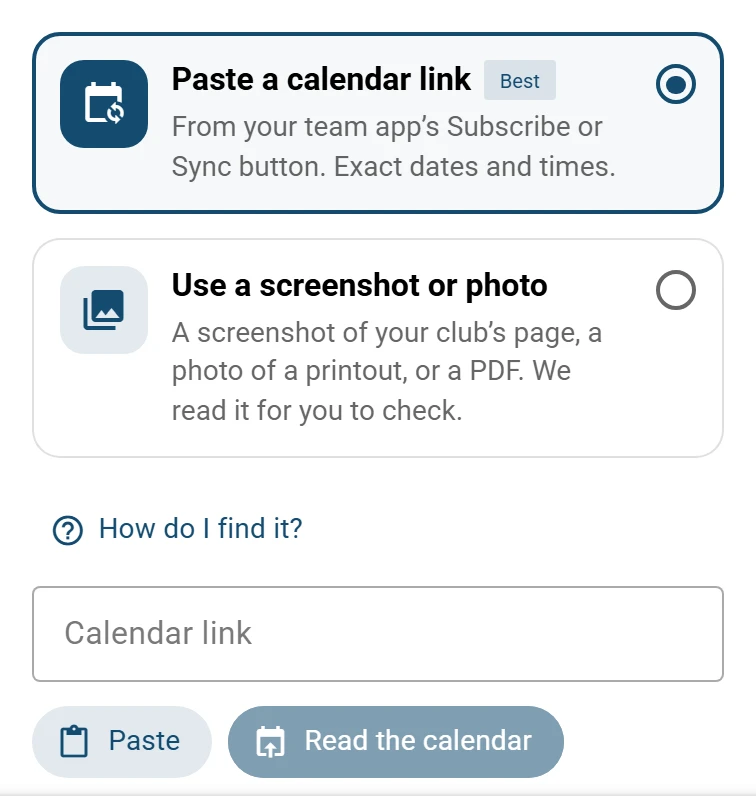
Or paste your team’s calendar link. If the calendar has more than one team, tick yours on Your teams.
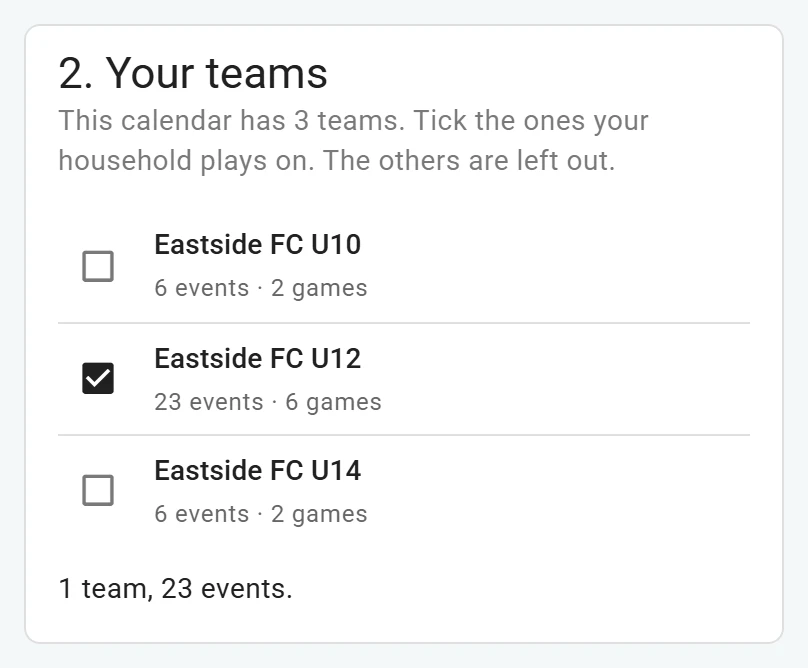
A calendar of several teams: tick yours. Check the rows, the team and who plays. Check what we read, then save shows how.
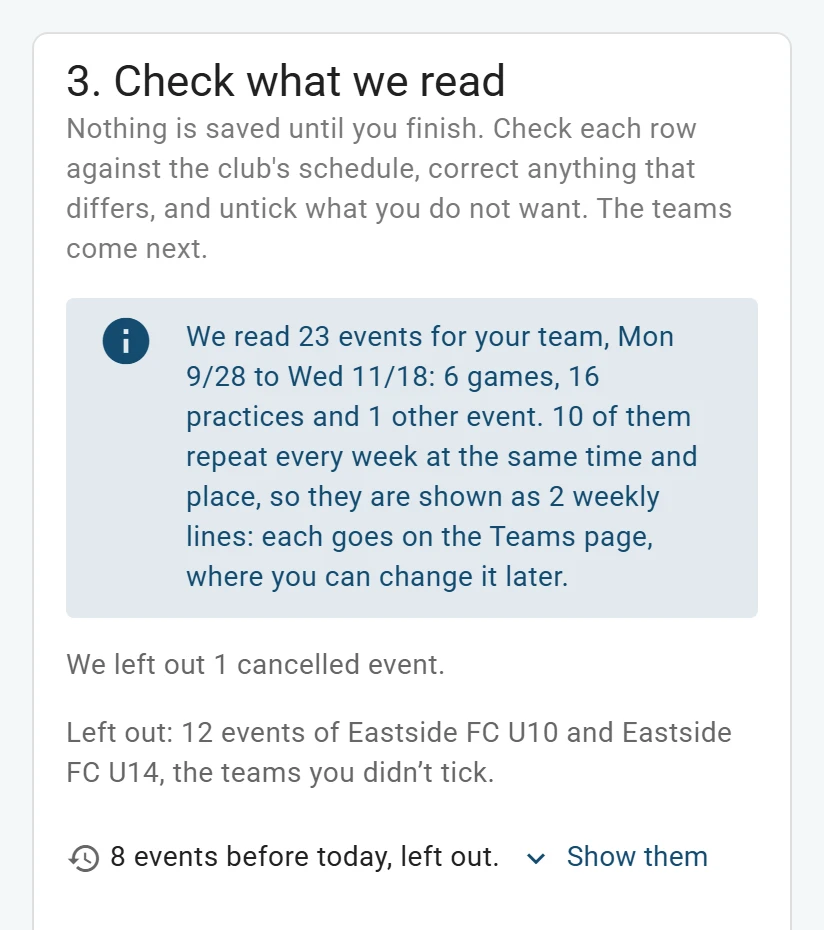
What we left out: a cancelled game, the other teams, and days already past. On the last step, leave the box above Save ticked to keep the link. Then tap Save.
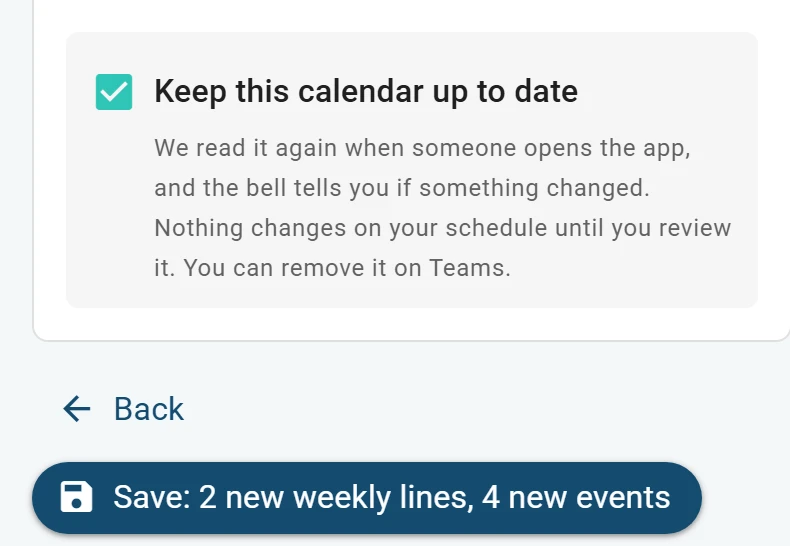
Leave the box ticked to keep the link.
What we leave out
We leave out cancelled and all-day events, and the teams you didn't tick. Events before today come in unticked.
An event with no place comes in unticked too. To keep one, tick it and add its venue: a rink, field, court or gym.
If you keep the link
Starter and Captain plans On Starter and Captain, we read the calendar again when someone opens the app. When it changes, the bell says so. Tap Review to see What changes.
Nothing on your schedule changes until someone reviews it and saves.
Read more in our privacy notice
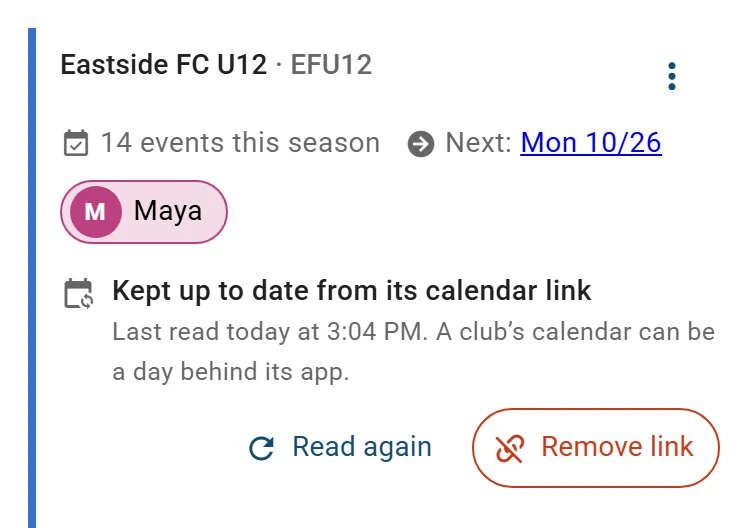
On Teams, the team has a line for its link. On Starter and Captain, Read again checks it now. Remove link asks first, and your games stay.
On Rookie, the box says Keep this calendar’s link. We keep the link, but don't check it.
What happens to the link
Our privacy notice says:
We never show it again, to you or anyone in your household, in the app or in a copy of your data, and we never send it back to anyone's device, since it can work as a key to your team's calendar.
Read more in our privacy notice
No AI reads the calendar, and we don't keep a copy of it.
Tip: Not every team app has a calendar link. If yours doesn't, add a schedule from a picture instead.
What to do next
- Check what we read, then saveNothing is saved until you check the rows, pick the team and tap Save.
- Add a newer version of a scheduleWhen the club changes its schedule, import it again and see what will change first.
- A schedule didn't read wellWhat to do when a picture can't be read, is refused, or the rows come out wrong.
Still stuck?
Write to support@twogamesplus.com and a person will answer.