Change, merge or remove a team or practice
Rename a team, join two copies of one team, or remove what you no longer need.
On this page
Who can do this: an Editor, someone who can change the schedule, or the Owner, the one person in charge. A Viewer, someone who sees the schedule and changes only their own things, can't do this. The app tells them who to ask.
Open the menu (☰) and tap Teams. Each team has a menu, the three dots (⋮) beside its name.
Change a team
Tap the three dots beside the team, then Change the team.
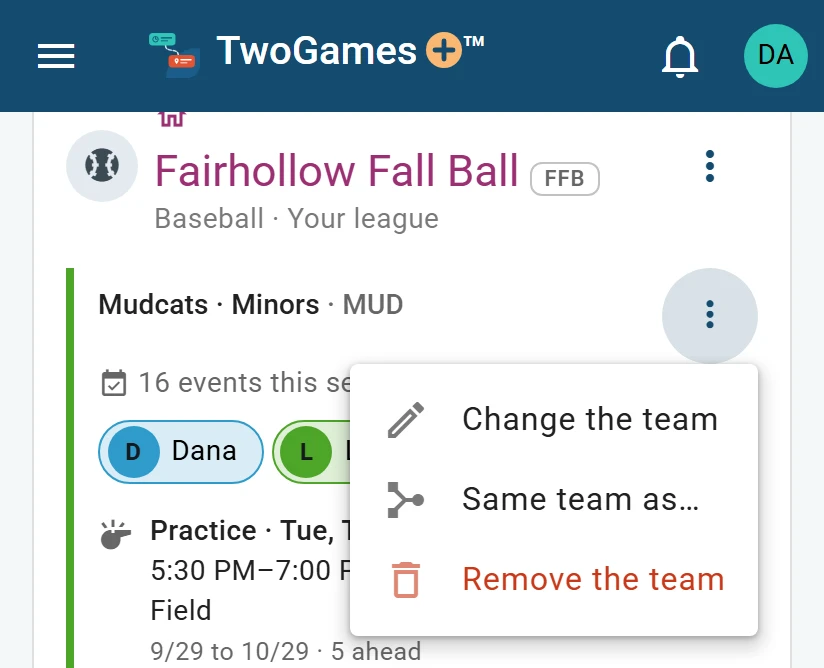
Each team’s menu changes, joins or removes it. Change its Team name, Colour, Who plays on it or level: its age group or division.
Tap Save. To leave without saving, tap Cancel or the X at the top right.
Change a league
Tap the three dots beside a league (the league or club it plays in), then Change the league.
Pick the league it really is from our list, and read what will happen. Then tap Save.
Pick one of Your leagues to move this league's teams there. Then this league goes.
To rename it instead, tap Keep it your own.
Join two copies of one team
Tap the three dots beside one copy, then Same team as….
Under The same team as, pick the other copy.
Under Which one do you want to keep?, pick one.
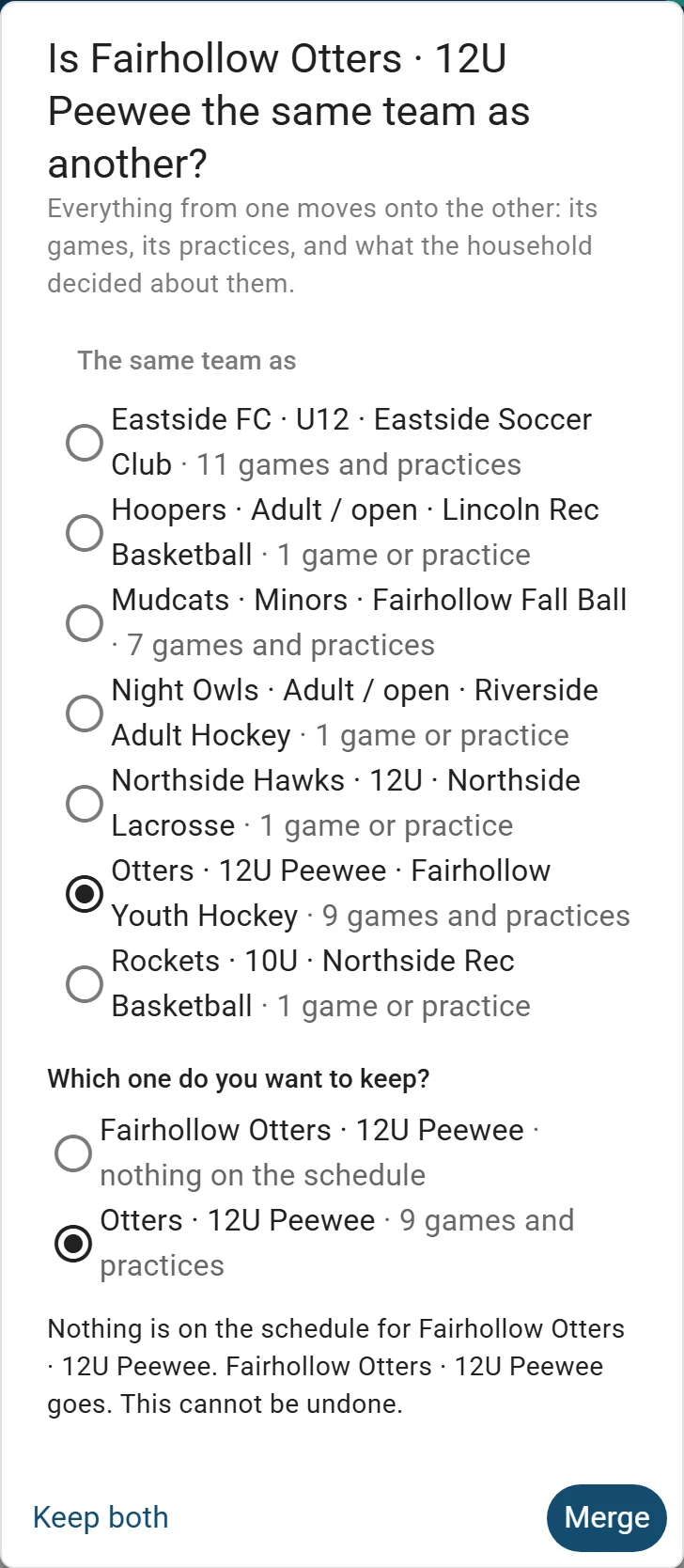
Pick the other copy, then which one to keep. You can't undo a merge. Then tap Merge.
Its games, practices and choices move to the team you keep. If both have the same game, only the kept team's copy stays.
Remove a team
Tap the three dots beside the team, then Remove the team.
Its games, practices and choices go with it. You can't undo this, so tap Remove only if you're sure.
If it was the last team on a calendar link you kept, the link goes too, and we delete it. The people on the team stay in your household (everyone who shares your schedule).
A league's own menu has Remove the league, which removes its teams too.
Depends on your plan Removing a team frees a place on your plan, and a merge never takes you over.
Depends on your plan A player is anyone on one of your teams. Your plan sets how many. See I can't add a player, team or person.
Change or remove a practice or event
Tap the pencil beside a practice or event to change it, or the trash can to remove it.
A weekly practice is a practice at the same time every week. Removing one takes away only its days still ahead.
Changing a weekly practice's days or start time makes it a new practice.
What to do next
- Change game length and how early to arriveSet how early each sport needs you there, and how long games, practices and packing up take.
- Add a teamAdd each team with its league, sport and level, and who in your household plays on it.
- Add a weekly practice by handAdd a practice that happens at the same time every week, for the whole season.
Still stuck?
Write to support@twogamesplus.com and a person will answer.