Check what we read, then save
Nothing is saved until you check the rows, pick the team and tap Save.
Before you start: read a schedule first. Add a schedule from a picture shows how.
Who can do this: an Editor, someone who can change the schedule, or the Owner, the one person in charge. A Viewer, someone who sees the schedule and changes only their own things, can't do this. The app tells them who to ask.
Depends on your plan Reading a picture uses one schedule read: one picture or PDF we read for you. A calendar link uses none.
Tap Next at the bottom to go on. If we read more than one team, tick yours on Your teams.
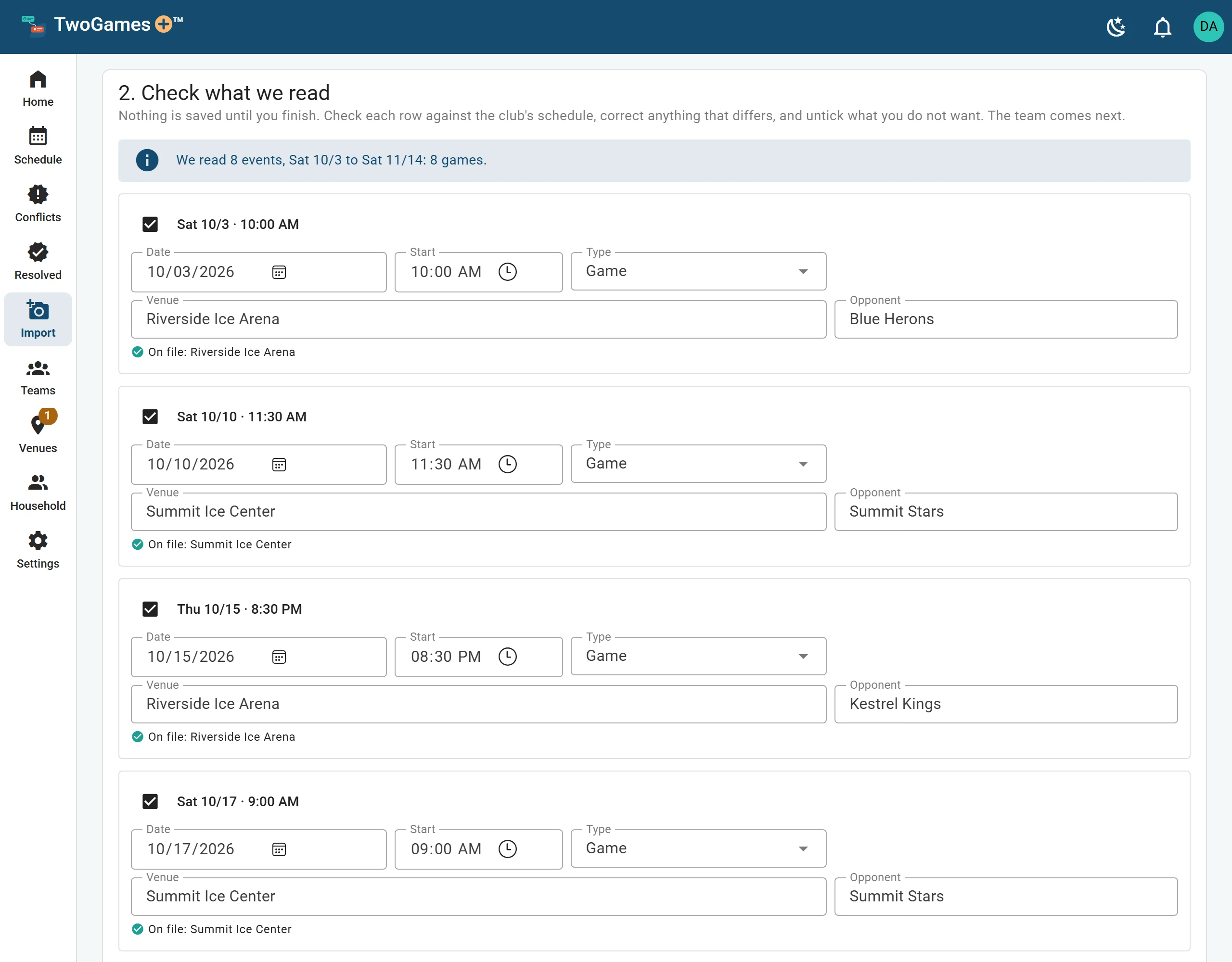
On Check what we read, compare each row with the club's schedule. Fix any date, time or place that's different.
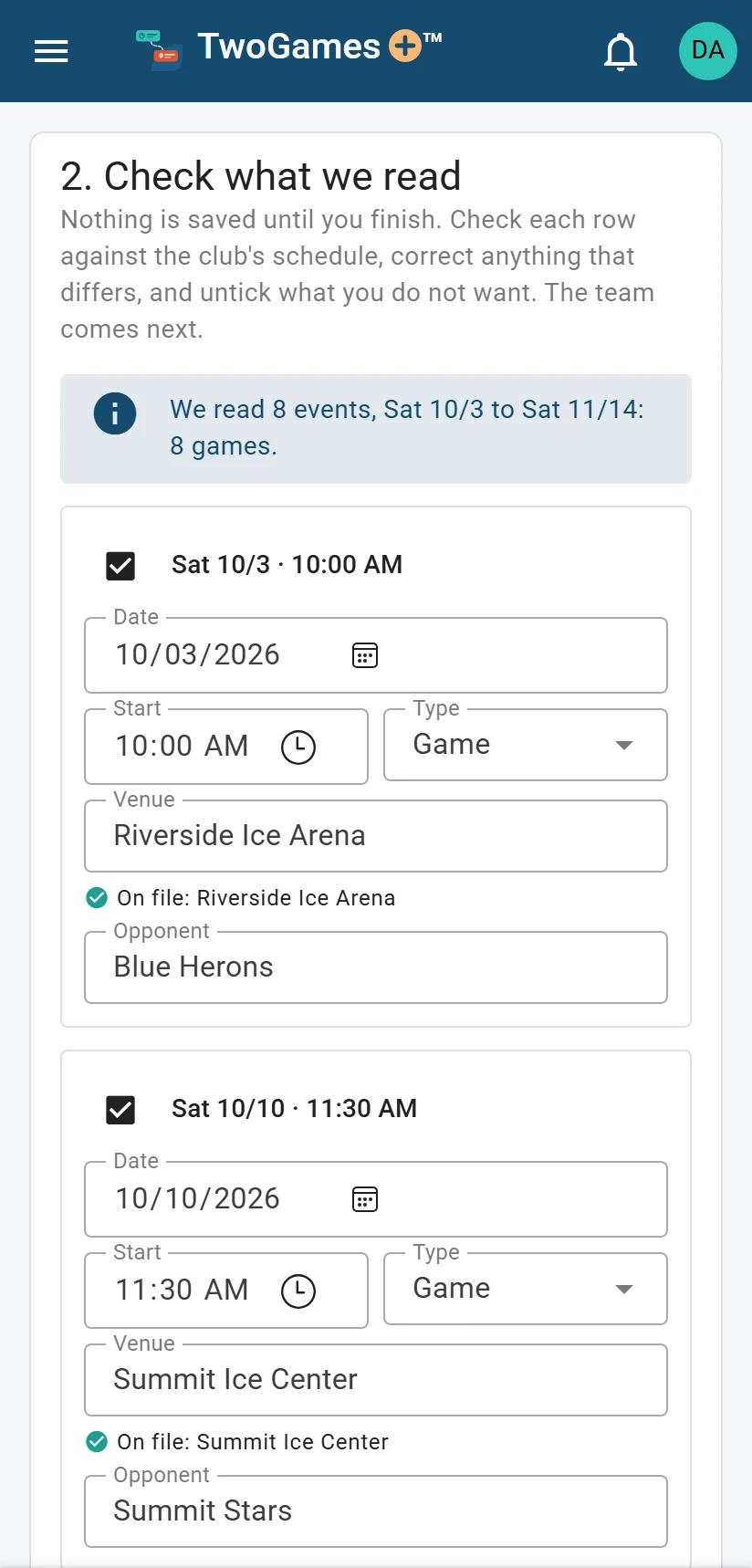
The same check on a phone. Look twice at rows marked Check this one. They were hard to read.
Untick any row you don't want.
Fix or untick any row marked in red. You can't go on until you do.
Pick the team under Team on this page (Team on this calendar for a link), or tap New team and check what we filled in.
Tick who plays on the team, or tap Add them to the household. With two or more of you, also tick Who goes to these events.
Read What changes, then tap Save. Nothing is saved before this.
With several teams, each one has its own block. Tap Make its team, or pick one under A team you have.
Depends on your plan How many teams and players (anyone on one of your teams) you can have depends on your plan. I can't add a player, team or person helps.
Practices that repeat
A page may list one practice week after week. We join those rows into one line under Weekly: a weekly practice, which is a practice at the same time every week.
To keep them apart, tap Keep as … single events. Games always stay apart.
Places
Under each row we say which venue it is: a rink, field, court or gym.
- On file: a place you already have.
- Remembered: the place you picked for these words last time.
- Known rink: one from our list of Massachusetts rinks.
- From the map: a place you picked from the map's list.
- New venue: we add it to your Venues page, and find it on the map later.
Wrong place? Tap Not it, or type the right one.
A calendar row with no place comes in unticked. Tick it, and add a venue.
Games already played
Games and practices before today come in unticked. To keep one, tap Show them and tick it.
What to do next
- See which days don't workFind every coming day with a Conflict, and the ones that are Tight, in one place.
- Add a newer version of a scheduleWhen the club changes its schedule, import it again and see what will change first.
- A schedule didn't read wellWhat to do when a picture can't be read, is refused, or the rows come out wrong.
Still stuck?
Write to support@twogamesplus.com and a person will answer.