Get directions, and fix a venue
Open a rink or field in your maps app, fix its address, or join two copies of one place.
A venue is a rink, field, court or gym. Every venue on your schedule is on the Venues page, with its address and the drive from the home you drive from.
Get directions
Tap Directions on a drive, then pick a maps app, like Google Maps, Apple Maps or Waze.
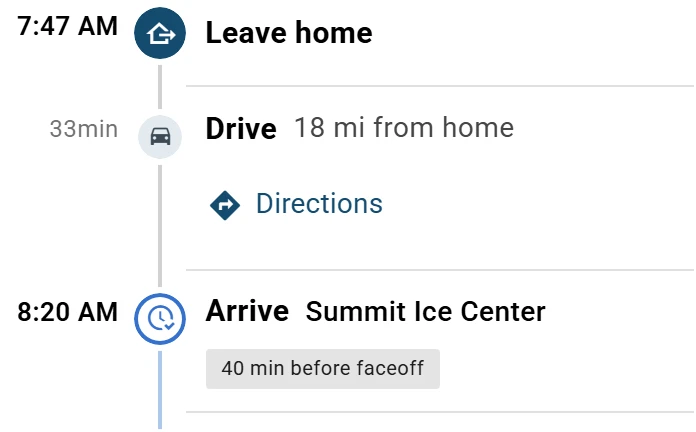
Leave Use it every time ticked to keep your pick. The arrow next to Directions picks another. Change it in Settings, under Maps app.
From a home your phone doesn't know, Directions starts where you are. To one, there are none.
To see a place, tap its map icon on Venues, or Open map on a game or practice.
Fix a venue's name or address
Who can do this: an Editor, someone who can change the schedule, or the Owner, the one person in charge. A Viewer, someone who sees the schedule and changes only their own things, can't do this. The app tells them who to ask.
Open the menu (☰), then tap Venues. On a tablet or computer, Venues is on the left.
An amber number on Venues counts the venues that need an address.
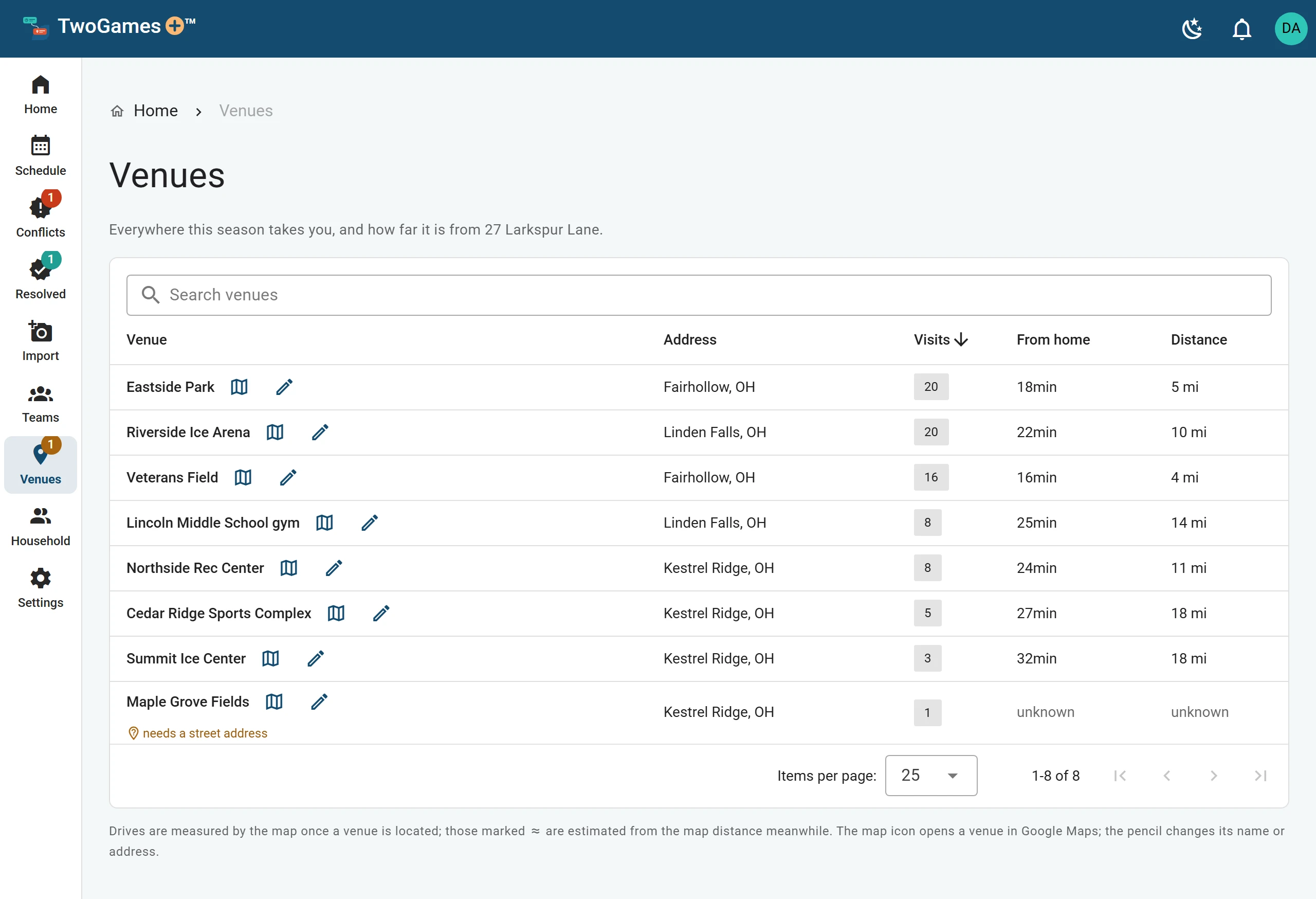
Every venue your schedules use, with its address. Find the venue, or type its name in Search venues.
Tap the pencil next to its name.
Fix the Name, Street address, Town, State or ZIP. Tap the right place if a list shows as you type.
Tap Save.
We look up the new address. Until the map finds it, the venue says locating…. If it says address not found: check it or needs a street address, fix the address.
See an amber pin on a day? Tap Fix to open that venue, ready for its street address.
Until the map has timed a drive, we guess from the distance. That drive says estimated on the day, and has a ≈ sign on Venues.
Two copies of one place
Two schedules can name one rink in two ways. Then Venues shows Same place as … under each name.
Under the copy to remove, tap Merge into …. Its games and practices move to the other one.
If the names or addresses differ, pick Which name to keep and Which address to keep.
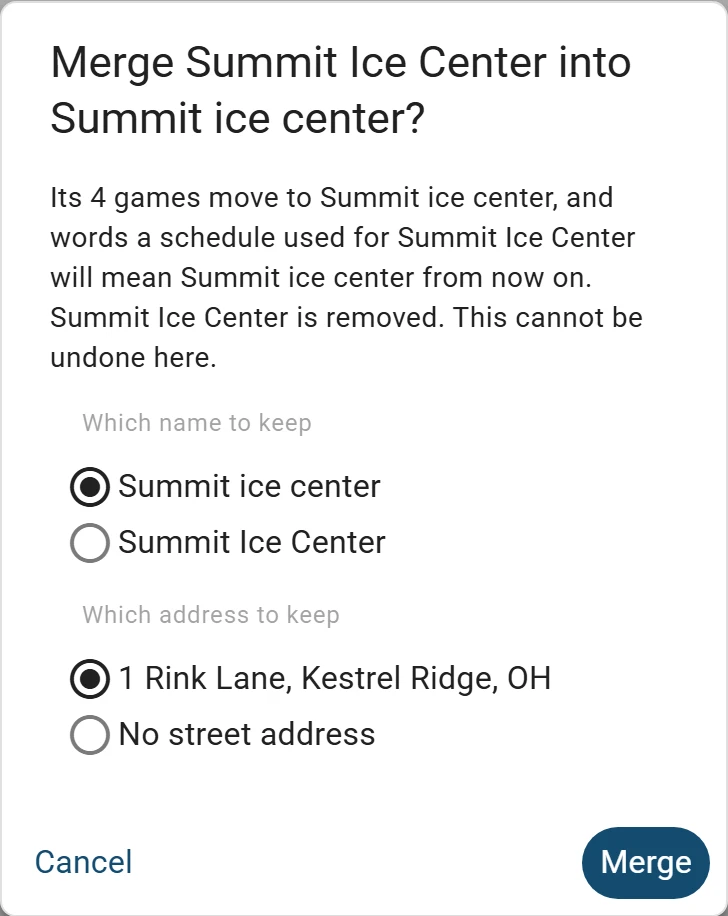
Merge two copies of one place, and pick what to keep. You can't undo a merge, so check your picks. Then tap Merge.
A venue with nothing booked also has a trash can. Tap it, then Remove, to take it off the list.
Can't fix a venue? Write to support@twogamesplus.com, and a person will help.
What to do next
- A day says Drive unknownA venue or a home isn't on the map yet, so we can't check the drives to it.
- See today's plan and when to leaveHome shows when to leave, each drive and each game, and keeps up with the clock.
- Check the traffic before you leaveSee today's drive with the traffic on the road now, and when to leave because of it.
Still stuck?
Write to support@twogamesplus.com and a person will answer.