Delete your account
Delete your own account in the app, at any time, and it goes at once.
On this page
Before you start: you can't undo it. Anyone who signs in can do it, whatever their role.
Tap your initials at the top right, then Delete my account. It's also at the bottom of Household.
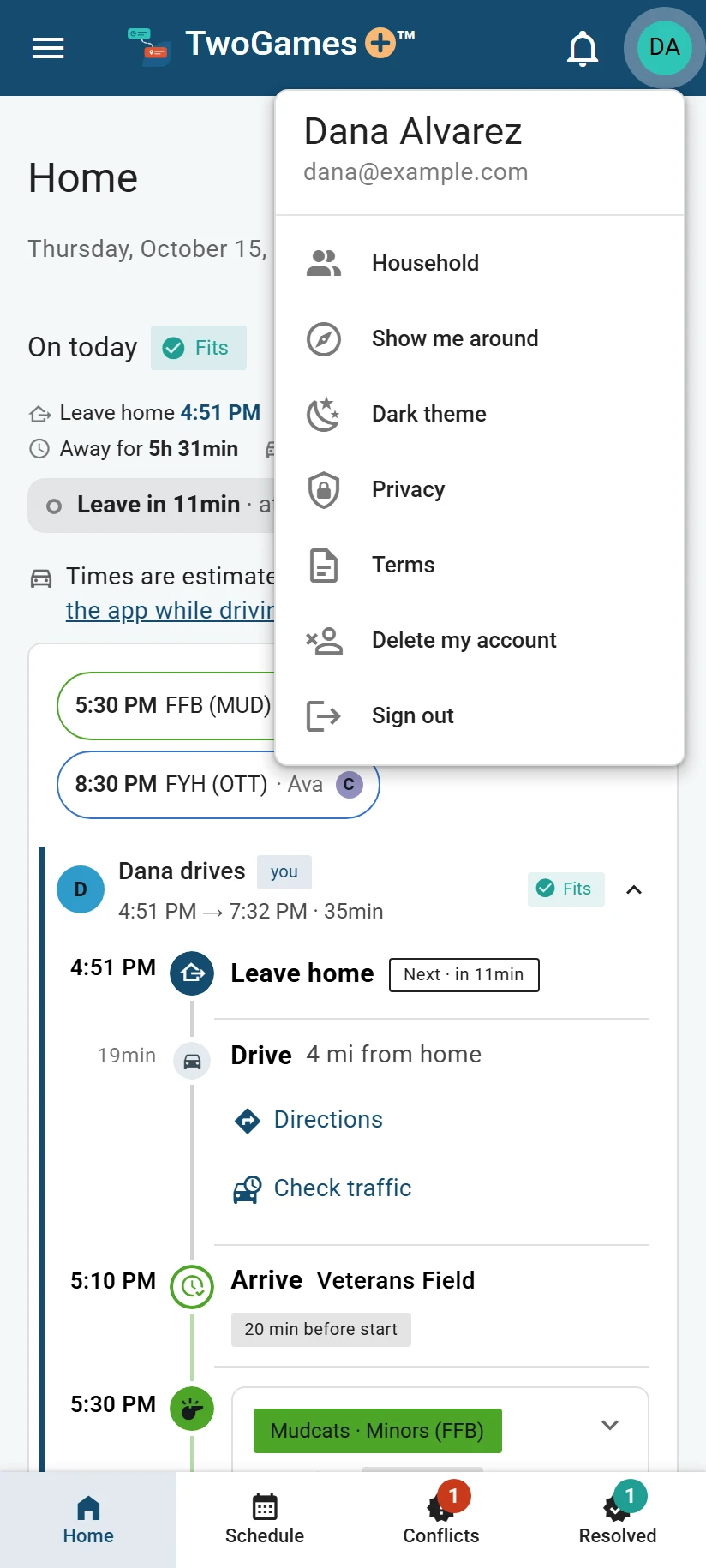
Tap your initials, then Delete my account. Read what goes and what stays.
Type DELETE in the box, then tap Delete my account. To stop, tap Keep my account instead.
What you'll see
You're signed out. We email you to say your account is deleted.
What happens to your household
Your household is everyone who shares your schedule.
If you're the only one in it, it goes too, with everything in it. A plan paid for on our website is cancelled first, without a refund.
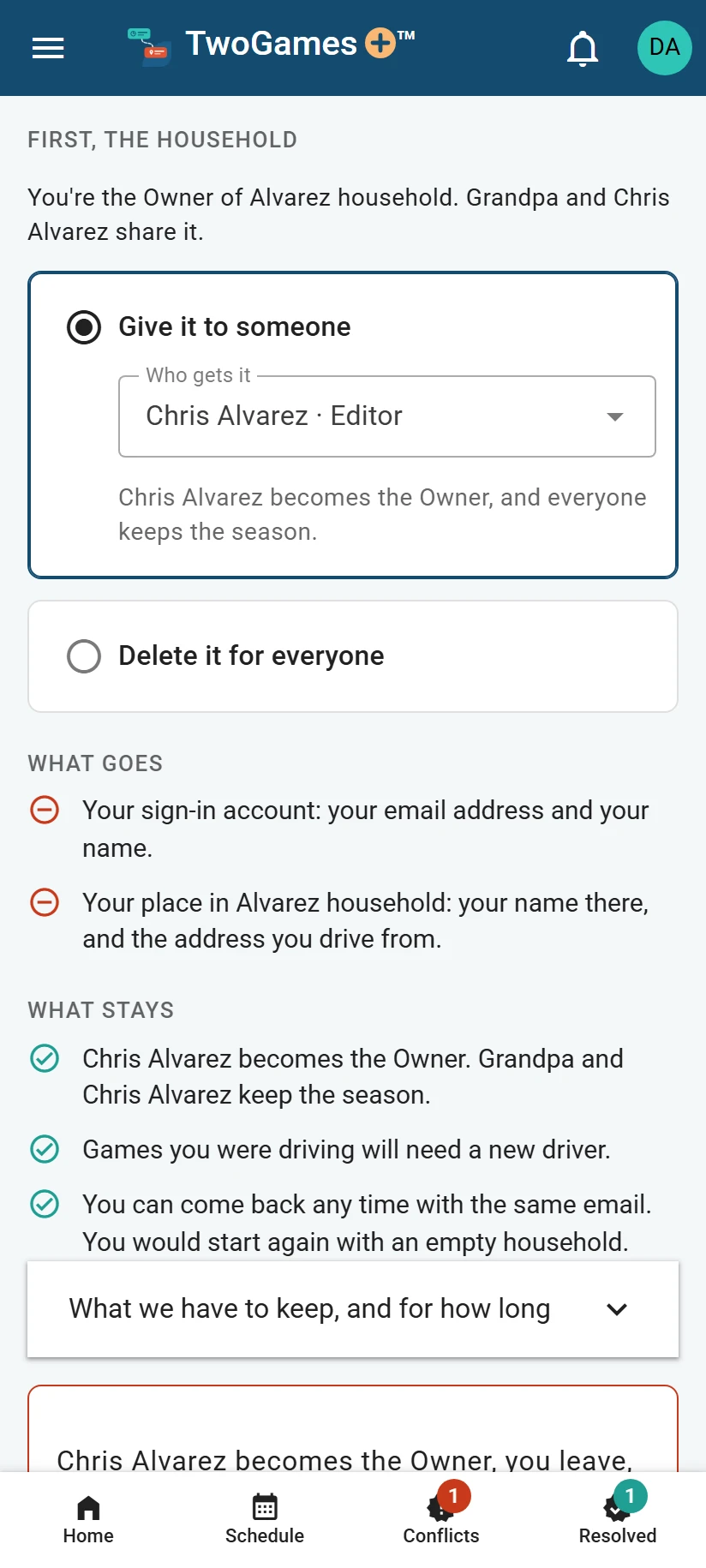
If you share it, you leave it, and the others keep it. Games you were driving will need someone else to drive.
If you're the Owner, the one person in charge, and others share it, you choose first. Tap Give it to someone and pick who, or Delete it for everyone.
If the household pays for a plan
Give the household to someone, and your card is never charged again. The plan runs to the end of what you paid for, unless the new Owner picks one.
Bought the plan in our iPhone app? Deleting your account doesn't cancel it, and Apple keeps charging you. So cancel it first: in the app, tap Manage subscription under Plans, or open your iPhone's Settings, tap your name, then Subscriptions.
Bought the plan in our Android app? Deleting your account cancels it for you, so Google Play doesn't charge you again. What you already paid for isn't refunded by us.
If you signed in with Apple
In our iPhone app, Apple asks you to confirm once more. If you close Apple's window, nothing is deleted.
Elsewhere, also remove TwoGames+ on your iPhone: Settings, your name, Sign-In & Security, then Sign in with Apple.
What we keep
A few records stay for a short time, such as payment records, which Stripe keeps as the law says. Apple and Google Play keep their own for plans bought in our apps. Our privacy notice says what stays, and for how long.
No app, or can't sign in?
Open TwoGames+ in a web browser, sign in, and follow the same steps. Our Delete your account page shows them too.
Can't sign in at all? Email privacy@twogamesplus.com from the address you sign in with, and we'll delete it for you.
If you sign in with Apple and hid your email address, write from any address and tell us the forwarding address Apple gave TwoGames+ (on your iPhone: Settings, then your name, then Sign-In & Security, then Sign in with Apple); we'll write to that address, and your reply confirms it's yours.
Read more in our privacy notice
Later, signing in with the same email starts a new, empty account.
What to do next
Still stuck?
Write to support@twogamesplus.com and a person will answer.