Add a newer version of a schedule
When the club changes its schedule, import it again and see what will change first.
On this page
Who can do this: an Editor, someone who can change the schedule, or the Owner, the one person in charge. A Viewer, someone who sees the schedule and changes only their own things, can't do this. The app tells them who to ask.
Import the new page the same way as the first. Add a schedule from a picture shows how.
Depends on your plan A new picture or PDF uses a schedule read: one picture or PDF we read for you. A calendar link, kept or read again, uses none.
The What changes step
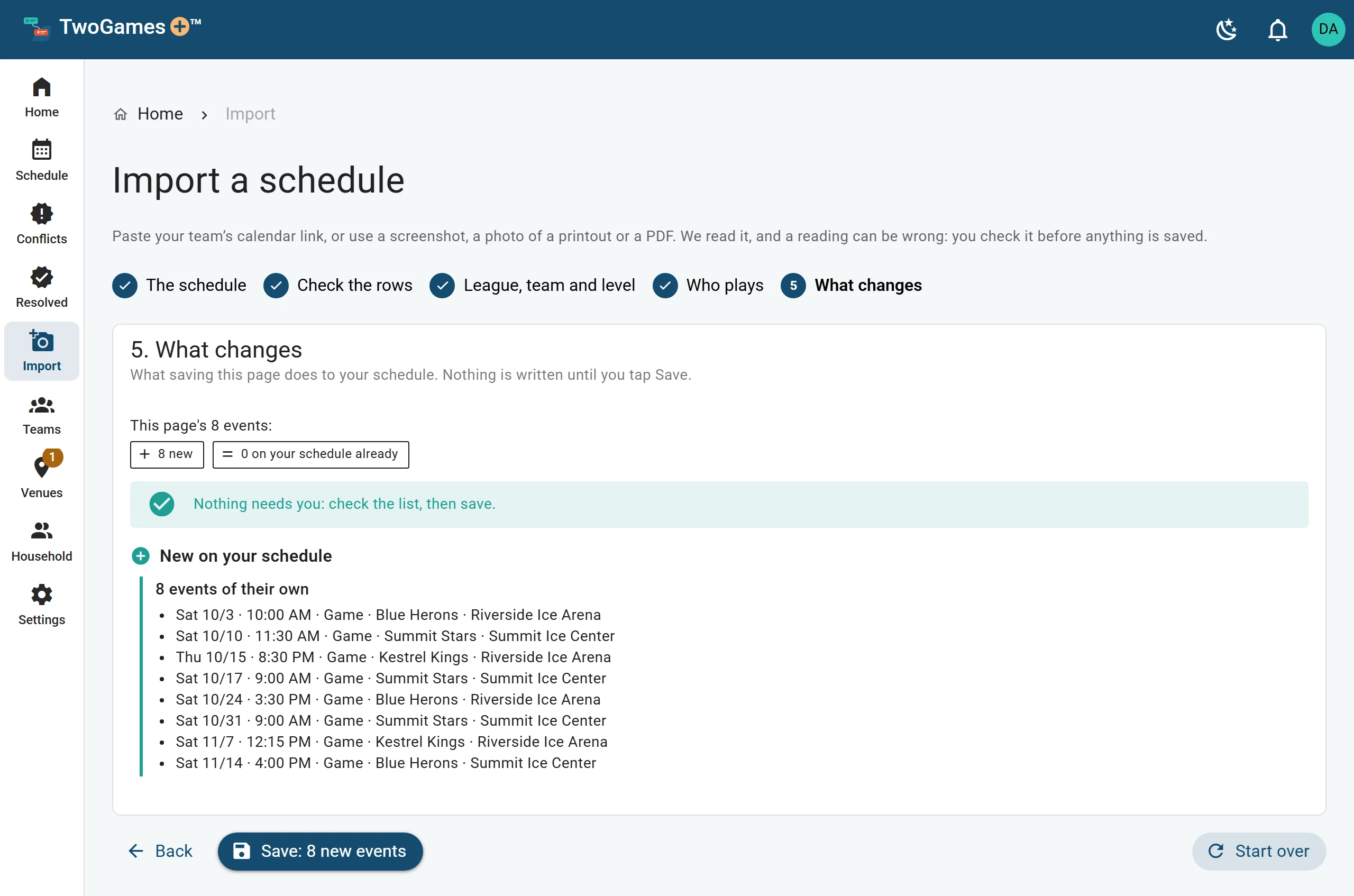
Before you save, What changes lists every game and practice on the page. Nothing changes until you tap Save.
- New on your schedule: added when you save.
- Already on your schedule: nothing changes.
- Changes to what you have: tap Use the page's or Keep mine.
- Removed when you save, where ticked: only the ticked ones go.
- Not on this page, so kept as they are.
What can be removed
A new page only speaks for the dates it covers. Anything after its last date stays, unless you tick it. A page of only games never removes practices.
A missing game is ticked for removal only if the page is clearly the same schedule. If it looks like part of one, or another team's, nothing is ticked.
What you added by hand on Teams stays, on days the page says nothing about.
If you kept a calendar link
Starter and Captain plans You can keep a team's calendar link as you save: Add a schedule from a calendar link shows how. On Starter and Captain, we then check it for changes when you open the app.
When it changes, the bell says what changed. Tap Review to see What changes.
On Starter and Captain, Read again on Teams checks it now. Remove link, on any plan, asks first, and the games stay.
If the calendar names more teams, its line has Add a team. On Rookie, the line says Not checked.
If a link stops working, its line turns amber: paste the club's new link. For an app we don't read, the line says to use a screenshot instead.
What you decided stays
A game or practice still at the same time keeps what you decided, like not going or who drives. A game from the club's page that moved to a new time counts as a new game, so decide again.
A tournament may have held days: a tournament day saved before its game times are out. Its games take their place, and what you decided moves to them.
What to do next
- Check what we read, then saveNothing is saved until you check the rows, pick the team and tap Save.
- Add a tournament before game times are outHold the tournament days now, so you can see what they clash with, and add the games later.
- See which days don't workFind every coming day with a Conflict, and the ones that are Tight, in one place.
Still stuck?
Write to support@twogamesplus.com and a person will answer.